
Time Clock to Payroll: Validate the Hours Before Release

Updated: 7 days ago

The import receipt says 80 hours were accepted. The time report also says 80 hours. Yet one employee's 38-hour week became 40 hours and another employee's 42-hour week became 40. The batch agrees because two errors cancel in the total. The employees' payroll results do not agree.
A useful time-clock integration check follows the selected time records into the particular payroll calculation. It asks whether the right people, dates, durations and categories arrived, whether later changes were included once, and whether the resulting pay reflects those inputs. Connection status and manager approval are pieces of that answer, not the whole answer.
This guide is for U.S. payroll teams validating recurring employee time inputs before release. Use the original Time Import Release Sheet to document one source version, its destination result and any exceptions. The worked incidents are fictional. They illustrate checks rather than tested performance of a named platform, and they do not determine every employee's wage-law treatment.

An employee-by-employee hours comparison is a useful requirement when choosing a payroll service. SelectSoftware Reviews provides a free advisor consultation if you want help identifying options. Confirm whether each candidate can supply the time and payroll records your team needs to compare.
Table of contents
Identify the time version used by payroll
Start with the payroll run you intend to release, then identify the time data it should contain. Record the employing entity, payroll period, payment date, included workers and source report or export. A file called “latest” or a dashboard showing today's approvals will not identify the version an import used yesterday.
Keep the approved source and the destination result available together. For a file transfer, retain the selected file with its creation time and import receipt. For an automatic sync, obtain the available record of the selected period, approval state, synchronization time and destination entries. If the service exposes no batch identifier, record the specific reports and timestamps that let another operator reconstruct the comparison.
An approved record can be stable without a universal lock command. Check what approval prevents in the actual product and which roles can reopen or alter time. If the workflow permits further edits, preserve the version used for the payroll comparison and review subsequent changes. Calling a report frozen does not make a mutable screen an unchanged source.
Intuit's timesheet approval guidance explains that approving displayed hours in QuickBooks Time locks time through the chosen report dates. Previously exported time can require a separate unlock before a correction. These are distinct states to check in that product. Do not substitute a generic instruction to unapprove everything, or assume another vendor has the same controls.
The Department of Labor's recordkeeping guidance requires accurate daily and workweek hours for covered nonexempt workers and allows different timekeeping methods. A complete, accurate record matters more than a particular file format. Preserve the underlying time evidence as well as the release sheet; the sheet summarizes your comparison and does not replace the employer's required records.
If several sites or supervisors supply time, list the expected contributions. A successful transfer from one site does not show that the others participated. Distinguish a confirmed no-hours result from a missing report, and assign an owner to unresolved source coverage before deciding the payroll action.
Test identities and dates before comparing totals
Join the source and payroll records by the identifiers that the interface actually uses. Review the relationship between time-system worker ID, payroll employee ID and employing entity. A matching display name is weak evidence when two workers share a name, a person changed entities or an old record remains active.
Compare the expected employee set with the imported set. List missing, unexpected and duplicate identities separately, rather than stopping at equal headcounts. Two lists can both contain 25 people while one person is absent and another appears twice. Reconcile current employee inputs and effective changes with the people expected in this particular run.
Check the dates represented by each record. The source's report range may be a clock period, a workweek or a pay period, while payroll can use another grouping. Record inclusive dates and the meaning of any end-date filter. A shift ending just after midnight can be assigned differently from the same shift's starting date.
The Department of Labor's overtime guidance uses a fixed, recurring workweek for ordinary federal overtime and does not permit averaging hours across two or more weeks. A two-week paycheck total alone is therefore insufficient for that calculation. Confirm the employee's applicable workweek before comparing the imported buckets. Other rules or agreements may require additional review.
Where timestamps cross midnight, a workweek boundary, a time-zone change or a daylight-saving transition, inspect the actual duration and date allocation supplied by the system. Do not repair a discrepancy by moving all hours to the date that makes the summary reconcile. Have the responsible time and payroll reviewers establish which dates and elapsed time the employee's records represent.
Treat an unexplained identity or period mismatch as a specific exception. Record the affected worker and entries, the likely boundary and the person checking it. The payroll team needs an actionable list, not a general note saying that the employee count or period looks unusual.
Translate categories without changing their meaning
Time systems and payroll systems do not necessarily use the same vocabulary. A code can represent worked time, paid leave, an unpaid absence, a premium or an allocation to a job. Write down what the source quantity means, where it lands and which system calculates any resulting premium. Similar labels are not evidence of equivalent treatment.
Make the units explicit. A duration displayed as 7:30 represents seven hours and thirty minutes, or 7.50 decimal hours. A value of 7.30 decimal hours represents seven hours and eighteen minutes. In a fictional straight-time example at $20 per hour, those inputs produce $150 and $146, a $4 difference. This is a unit-conversion example, not a rounding recommendation.
Confirm whether the exported number is minutes, decimal hours, a formatted duration or an amount of money. Keep the source value and the documented conversion together. A spreadsheet that silently converts a duration to a date or truncates precision can alter the payroll input while leaving the visible column heading unchanged.
Keep worked hours and paid nonwork time distinguishable. A payroll line can be payable without representing hours actually worked for a particular overtime calculation. An employee with 36 worked hours and eight paid leave hours has 44 payable hours on that simplified scope; the interface should not silently describe all 44 as worked time. Review applicable overtime calculation rules and the employer's leave-category review before deciding the result.
Check whether overtime arrives as total hours plus an additional premium, or as separate regular and overtime quantities. If the time system sends 42 total worked hours and a two-hour premium indicator, treating the indicator as two additional worked hours creates 44 hours in payroll. Confirm the interface's intended representation and verify the resulting earnings rather than guessing from the word overtime.
The same check applies to rate and job information. A correct duration associated with the wrong earnings code or assignment can produce the wrong amount. For workers with several rates, confirm that the destination preserves the distinctions needed for the authorized calculation. This guide checks the transfer; it does not supply a substitute formula for every multiple-rate, premium or special-industry arrangement.
Document a category change before the next import. Retain the earlier mapping, the effective version and a sample showing the intended destination. If only one code is wrong, identify the affected records instead of changing unrelated mappings to force the grand total to match.
Compare each person, then the batch
Begin with comparable records at employee, workweek and category level. Match the approved source quantities to the destination quantities after the agreed conversion. Record differences with a sign and a description. A positive difference for one employee should remain visible even when another employee has an equal negative difference.
Use the batch total as a completion check after the detailed comparison. It can expose a missing site, truncated file or unexpected extra block of time. It cannot show which employee was paid correctly. Keep the employee-set result, detailed differences and batch totals together so the reviewer can see both coverage and meaning.
Revisit the opening's fictional 80-hour import. The source has Employee A at 38 worked hours and Employee B at 42 in one workweek. Payroll shows 40 for each. Employee A has two extra hours, Employee B has two missing hours, and the net batch difference is zero. A release decision based only on the total would miss both defects.
For illustration, assume both are covered nonexempt hourly employees at a $20 regular rate, with no other remuneration affecting that rate and only the ordinary federal weekly overtime rule in play. A's supported gross is $760. B's supported gross is $800 for 40 hours plus $60 for two overtime hours, or $860. The correct combined gross is $1,620; paying each 40 straight-time hours produces $1,600. Equal hours at batch level do not even guarantee equal gross pay.
Do not use that simplified calculation for an employee with different applicable rules or compensation. Investigate the two employees separately, correct the supported inputs and verify a new preview. If payroll has already been released, route the resulting wage correction and any excess payment through the approved processes instead of offsetting one employee's difference against another's.
When the operation is too large for manual comparison, use available reports or a controlled comparison file to identify the full unmatched population. Check the join keys, units and selection logic before trusting its exceptions list. Sampling can investigate a cause or test a repair, but a few matched employees do not prove that every affected record now matches.

The fictional batch has no net hour difference, yet two employees have mismatched time. Compare the employee records before relying on the batch total.
Keep late edits outside the approved import
A missing punch or changed timesheet after the comparison is a new source version. Identify what changed, which employees and workweeks it affects, and whether payroll already contains the earlier hours. Preserve the previous version. Replacing the file without recording its relationship to the imported version makes a later reviewer reconstruct the history from screenshots.
A missed approval should trigger investigation and escalation, not an assumption that no work occurred. The Department of Labor's hours-worked guidance includes work that an employer suffered or permitted, even if it was not requested. Determine the supported hours and wage obligations separately from the supervisor's approval failure. An internal cutoff does not itself authorize omitting compensable time.
Choose the repair route using the actual service's behavior. Does a new import replace an earlier employee-period total, update particular rows, or add entries? Can an automatic sync still overwrite a manual adjustment? Find that out before sending a second file. A tool described as integrated can still require a separate review of its repeat-import behavior.
Gusto's time-tracking guidance says approved hours sync automatically to regular and dismissal payrolls. It also explains that editing hours in the payroll flow does not update the time-tracking record. A downstream change and a source correction are therefore different actions in that documented workflow. Confirm current instructions for the actual account; this is a source-based example, not a claim of testing or a universal repair sequence.
If the supported hours are not yet known or the payroll cutoff is approaching, bring the uncertainty to the authorized wage and payroll reviewers. Record the missing fact, next response time and available processing routes. A wage timing review must establish what can lawfully wait and what needs another action. Do not write a blanket rule that late time moves to the next paycheck.
Keep employee communication specific to the case. State which hours are being checked, who owns the decision and when an update will follow. A generic promise that payroll will catch the correction next cycle is inadequate when nobody has established the amount, required timing or treatment in the next import.
Time codes and repeated imports deserve specific questions in a payroll evaluation. A free consultation through SelectSoftware Reviews can support that evaluation. Request documentation showing who can change approved time and whether a repeated feed adds or replaces entries.
Complete the Time Import Release Sheet
Copy the following sheet into the team's controlled payroll file. Use one sheet for a defined source-to-payroll comparison, with a separate exception record for each changed or unmatched slice. Add links to the restricted evidence instead of reproducing unnecessary employee details in a widely shared document. The twelve fields make the release decision reproducible without prescribing a particular vendor screen.
Comparison basis
Selected population: Identify the employing entity, destination payroll run, intended payment date and employee IDs included in the time feed. Record the expected source contributors and any confirmed no-hours group. Name the owner resolving missing or extra people so an equal headcount cannot conceal a different population.
Calendar basis: Record the source date range, payroll period, applicable workweek start and relevant time-zone or overnight allocation. State which dates belong to the comparison and how the interface represents them. Include a reviewed explanation when a report range and the payroll period differ.
Source receipt: Link the approved report, export or available sync evidence, with its version, creation or observation time and approval state. Identify whether later edits remain possible. Preserve the specific input used, rather than linking only to a screen that can change after release.
Quantity meanings: List the units and category definitions used in this comparison, their destination codes and the mapping version. Distinguish worked hours, paid nonwork time and any premium representation. Name the reviewer for an uncertain classification; an unexplained code should not inherit meaning merely from its label.
Transfer results
Destination attempt: Record the import or synchronization reference, its time and the resulting payroll preview or entries. State whether this attempt adds, replaces or updates earlier data, using confirmed product behavior. Identify a pending automatic action or prior manual entry that could change the result after this check.
Identity result: Record the match between expected and actual employee sets, including missing, extra and duplicate identities. Retain the detailed exceptions, not just the two counts. Explain how time and payroll identifiers were joined and who confirmed an entity or employment-record change that affected the match.
Duration result: Preserve the employee-workweek-category comparison and its unit conversion, then record the batch reconciliation. List unexplained differences individually, including opposite differences that cancel in a total. Distinguish a data error from a documented representation difference that has been reviewed and accepted.
Pay consequence: Identify the earnings preview checked against the supported hours, rates and authorized calculation. Record the reviewer and any unresolved pay effect. Matching durations establish an input comparison; they do not independently confirm the employee's deductions, taxes, net pay or actual payment delivery.
Exceptions and release
Changed entries: For each late change, retain the old and new source references, affected employees and dates, changed quantities and supporting approval. Explain why the change is required and where correcting the time record belongs. Preserve the earlier result as history instead of overwriting the only evidence of the first import.
Duplicate control: State how the changed hours will enter payroll once. Identify the earlier destination entries and whether the chosen action replaces them or adds only a reviewed difference. Include any automatic sync or other operator that could submit them again, and the confirmation needed before executing the repair.
Open decisions: List each unresolved comparison, wage-timing question or processing dependency, with its owner and next decision time. Specify the approved change route for the affected slice. Identify the authority for proceeding, holding that slice or using another permitted route; do not convert an unanswered question into approval.
Release reference: Identify the final source version, destination preview, comparison result and approval authority used for release. Record any supported exceptions and their separate treatment. If one of those items changes after approval, identify the new version and obtain the review needed for the changed result.
The sheet is complete when the reader can trace the chosen source to the payroll result and understand every open exception. Empty fields should have an explicit reason when they are inapplicable. “All good” is not an adequate duration result when the comparison file still contains unmatched employees.
Decide what the mismatched slice needs
A difference needs a disposition that names the affected scope. If the imported result is wrong and can be repaired before release, correct the relevant source, mapping or destination through the authorized process and repeat the affected comparisons. Retain the original evidence so the team can explain both the defect and the repair.
If the input is supported and the difference is only a documented representation, show the conversion and destination earnings that establish the match. For example, a source duration of 450 minutes and a destination quantity of 7.50 hours can agree. That explanation is different from accepting a wrong duration because the net batch variance happens to be small.
If time is missing or disputed, establish the employee-level payment plan with the responsible reviewer. Holding an unreliable import is an internal processing action; it does not resolve the employer's obligation to pay. Identify the permitted alternative, required timing and evidence needed for that decision rather than assuming the entire payroll must wait for a supervisor.
If the connection itself failed, separate the system-to-system incident from the supported time and payment decision. Retain source evidence, identify the affected entries and determine whether an authorized fallback is needed. Fixing transport does not show whether a previously entered manual correction has disappeared from payroll.
Bring the resulting preview into the final payroll review. Time validation should supply the precise population, version and pay effects for that broader check. Keep tax, deductions, funding and release authorization in their normal review path instead of marking the whole payroll ready because its hours reconcile.
Recheck changed hours against a new preview
Suppose a fictional approved source and payroll import both show 38 straight-time hours. Supported late time adds two hours, so the corrected source is 40. Before another import, identify whether the destination will replace the earlier 38 or add the quantity being sent. The right input depends on the confirmed route.
With a replacement route, substituting the reviewed 40-hour total for the earlier 38 leaves 40. With an authorized difference-entry route, retaining 38 and adding two also leaves 40. Retaining 38 and adding a second full 40-hour total leaves 78. At a flat $20 straight-time rate the latter is $1,560 instead of $800, a $760 difference. This narrow arithmetic example does not determine overtime or correction tax treatment.
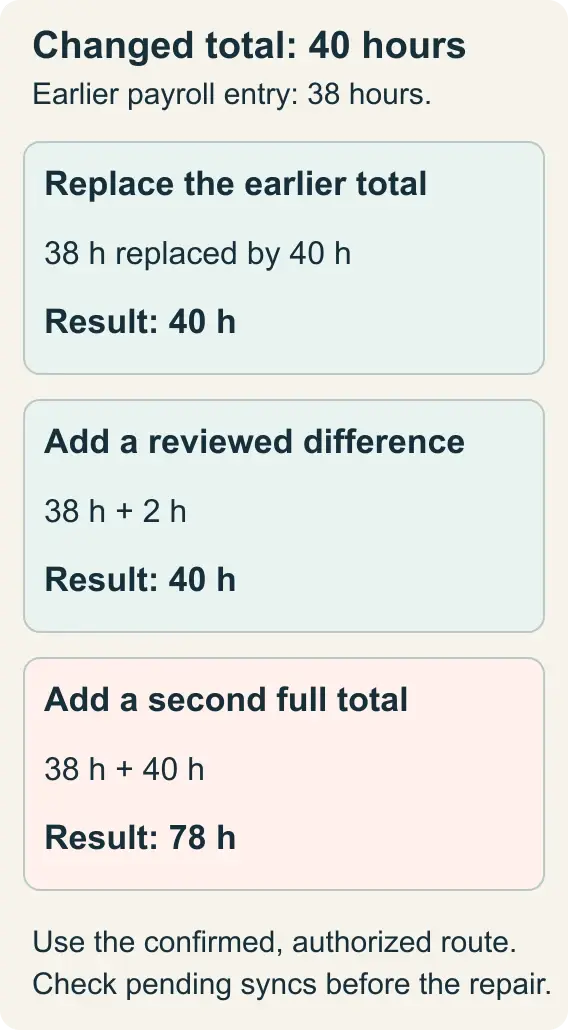
The fictional late change needs a confirmed route. Replacing the earlier total and adding only the reviewed difference can each produce 40 hours; adding a second full total can duplicate the earlier entry.
Choose one authorized route and record its relationship to the first attempt. Do not ask two operators to try different fixes against the same unresolved hours. If a provider controls the next sync, obtain the specific confirmation needed to understand what it will import and how it treats existing entries.
After the repair, compare the new source and destination versions, check the employee set and recalculate the relevant pay results. Inspect the changed categories and any workweek totals they affect. A two-hour addition can change overtime eligibility in a real case, so a correct quantity difference is not automatically a correct earnings difference.
Record the new preview reference and renewed approval where required. A prior approval for 38 hours does not cover approval of a different calculation. If payroll is already processed, follow the named product's current correction instructions and the employer's lawful correction route; do not treat this pre-release example as authority to reopen or rerun paid records.
Prove the next run used the repair
After release, preserve the selected source, the comparison, the final preview or payroll result and any exception decisions under the employer's record-retention decision. Keep access to underlying evidence appropriate to its sensitivity. The release sheet should let a later reviewer find the necessary records without exposing a whole workforce export to everyone who can view the summary.
For a recurring mapping or time-record defect, assign a check on the next relevant run. Verify that the corrected code, population or source treatment actually reaches payroll. A configuration screenshot can show that someone changed a setting while the scheduled feed still uses an older export or while a previous manual entry is imported again.
Use repeated incidents to identify the boundary that needs improvement: source coverage, identity mapping, units, category meaning, late changes or duplicate handling. A report that simply counts failed imports will miss wrong results from technically successful transfers. Keep the cause tied to observed evidence rather than deciding that every mismatch requires a new platform.
When reviewing documented interface requirements with a provider, ask which reports prove the selected time version, how repeat imports treat existing entries and which edits remain possible after approval. Verify those behaviors in the actual service and workflow. The practical result is a payroll calculation that can be traced to supported employee time, with changed hours entering once and unresolved decisions remaining visible.
Before relying on a service for a correction, ask what an operator can verify after the repair and what support handles a mismatch. SelectSoftware Reviews has a free advisor consultation for readers comparing payroll services. Use the comparison to check reporting access and the limits of the proposed workflow.
Explore the Decision Guides library.
See the Payroll Operations & Controls hub.

About the author
Ben Scott writes and maintains payroll decision guides for founders and operators. His work focuses on execution realities and how decisions hold up under growth, complexity, and controls and documentation pressure. He works hands-on in HR and leave-management roles that intersect with payroll-adjacent workflows such as benefits coordination, cutovers, and compliance-driven process controls.


